Did you ever tried to store data on Silverlight from an async web service call using SaveFileDialog - and get told it doesn’t work?
But that is only half the truth. Here it how it works!
Wednesday, November 24, 2010
Monday, November 1, 2010
Visual Studio, TFS and WinMerge
WinMerge is a great and handy tool for comparing and merging source code and other textual file types within a team development environment.
I use it since a few years and therefore I also want to use it with VS2010 and TFS and it’s very simple.
Just go through
Tools > Options > Source Control > Visual Studio Team Foundation Server > Hit <Configure Tools>
Here you can setup custom tools for comparing and merging.
Add a new tool and provide the installation path to WinMerge and some command line arguments like (explanation follows):

Hit <OK> and do the same with merge.
Command line switches for WinMerge are (copied from the WinMerge documentation):
-
/rcompares all files in all subfolders (recursive compare). -
/eenables you to close WinMerge with a single Esc key press. -
/fapplies a specified filter to restrict the comparison. The filter can be a filemask or the name of a file filter -
/xcloses WinMerge (after displaying an information dialog) when you start a comparison of identical files. -
/slimits WinMerge windows to a single instance. -
/ulprevents WinMerge from adding the left path to the Most Recently Used (MRU) list. -
/urprevents WinMerge from adding the right path to the Most Recently Used (MRU) list. -
/uprevents WinMerge from adding either path (left or right) to the Most Recently Used (MRU) list. -
/wlopens the left side as read-only. -
/wropens the right side as read-only. -
/maximizestarts WinMerge as a maximized window. -
/dlspecifies a description in the left side title bar, overriding the default folder or filename text. -
/drspecifies a description in the right side title bar, just like/dl. -
leftpath -
rightpath -
outputpath -
conflictfile
Resources:
flurfunk.sdx-ag.de
www.prowebconsult.com
Winmerge manual


Sunday, October 31, 2010
Auto checkout with VS2010 and TFS2010 not working
On my project “Simple Proxy Switch” I decided to access codeplex version control system through VS2010 TFS integration.
As I mainly use Subversion I like that you can edit files without locking them. As I arrived on TFS I missed this a lot. Searching for other options I found the ability of TFS to check out files on edit.

Nevertheless it doesn’t work for me. Files still are not getting checked out on edit.
Fast search at the web discovers some helpful links mainly again in the Microsoft Developer Network.
The missing setting was the binding of the solution to TFS. This can be achieved on Selecting solution and than go through
File –> Source Control –> Change Source Control
select solution and hit <Bind>.
Et voilà. Now VS2010 checks out files on edit.
Thursday, October 21, 2010
You are logged into a Temporary Profile
Shortly my new syspreppted virtual machine say’s “You are logged into a temporary profile.” WFT?
After a short search with my search engine of choice I found a solution for this on the Windows 7 IT Pro Forums. Detailed information about user profiles can be found on About User Profiles.
So this has been caused because I used this machine with the same domain account before I had sysprepped it.
In short:
Search user profile at
Open the registry editor and search for the profile with the corresponding SID at registry key
Restart and try to log on. Problem should be solved.
After a short search with my search engine of choice I found a solution for this on the Windows 7 IT Pro Forums. Detailed information about user profiles can be found on About User Profiles.
So this has been caused because I used this machine with the same domain account before I had sysprepped it.
In short:
Search user profile at
C:\Users\%username%and delete it.
Open the registry editor and search for the profile with the corresponding SID at registry key
HKEY_LOCAL_MACHINE\SOFTWARE\Microsoft\WindowsNT\CurrentVersion\ProfileListand delete it.
Restart and try to log on. Problem should be solved.
Detect current network setting with C#
In cause of my latest project Simple Proxy Switch I had to face the challenge of detecting the setting of the current network the computer is connected to.
Now here’s my snippet how do I retrieve the current network setting:
// zero conf ip address
IPAddress zeroConf = new IPAddress(0);
// get current assigned addresses
IPAddress[] hostAddresses = Dns.GetHostAddresses(Dns.GetHostName());

var networkData = NetworkInterface.GetAllNetworkInterfaces()
  // filter running network interfaces
  .Where(network => network.OperationalStatus == OperationalStatus.Up)
  // filter unknown interfaces
  .Where(network => network.NetworkInterfaceType != NetworkInterfaceType.Unknown)
  // filter loopback interfaces
  .Where(network => network.NetworkInterfaceType != NetworkInterfaceType.Loopback)
  // get the properties
  .Select(network => network.GetIPProperties())
  // filter initialized gateways
  .Where(ipProps => ipProps.GatewayAddresses.All(gateway => gateway.Address != zeroConf))
  // filter and get ip addresses
  .SelectMany(ipProps => ipProps.UnicastAddresses.Where(ucAddress => hostAddresses.Contains(ucAddress.Address)))
  .Where(ucAddress => hostAddresses.Contains(ucAddress.Address))
  // simply use the first
  .FirstOrDefault();
Be the force with you!
Monday, September 27, 2010
Network drives unavailable while running programs under Admin privileges
Since the installation of VS 2010 I discovered that some network shares are unavailable to access with Visual Studio 2010. This is disturbing because my shared settings living on a network share.
I guessed this was caused because of VS2010
The problem is caused by using different access tokens for user currently logged in and program that runs with admin privileges. Further information can be found here.
This problem can be solved by enable sharing of access tokens between current (filtered) and admin access. This can be done by creating registry key
Have fun.
I guessed this was caused because of VS2010
%VSINSTALLDIR%\Common7\IDE\devenv.exeis treated to be executed as administrator also the VSLauncer.exe located in
%CommonProgramFiles%\microsoft shared\MSEnv\VSLauncher.exeYesterday I spent now 2 min with google and found a solution.
The problem is caused by using different access tokens for user currently logged in and program that runs with admin privileges. Further information can be found here.
This problem can be solved by enable sharing of access tokens between current (filtered) and admin access. This can be done by creating registry key
EnableLinkedConnectionslocated under
HKEY_LOCAL_MACHINE\SOFTWARE\Microsoft\Windows\CurrentVersion\Policies\Systemand setting it’s DWORD value to ‘1’. Detailed information can be found here.
Have fun.
Wednesday, August 11, 2010
ReSharper shortcuts for VS2010 to improve TDD productivity
ReSharper is a powerful tool that helps you to produce better code.
One very nice feature is to run your NUnit-Test within the integrated Testrunner. But it’s a little bit annoying to click on the play button every time you want to run a test.
The easiest thing to handle this is to set up keyboard shortcuts to run you tests. Visual Studio supports setting shortcuts for a lot of actions, so let’s go straight ahead and set up shortcuts.
Simple open the options dialog for keyboard settings via Tools –> Customize –> hit “Keyboard” button and then search for
As result you get something like the following:
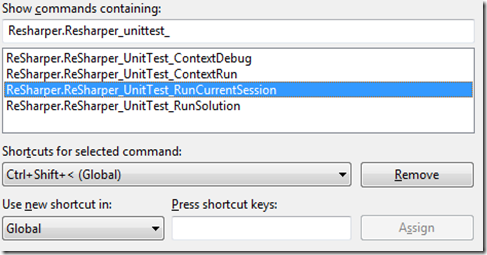
Now you can set the shortcut for the desired operation.
I have chosen combinations of
A short explanation of the shown possibilities:
One very nice feature is to run your NUnit-Test within the integrated Testrunner. But it’s a little bit annoying to click on the play button every time you want to run a test.
The easiest thing to handle this is to set up keyboard shortcuts to run you tests. Visual Studio supports setting shortcuts for a lot of actions, so let’s go straight ahead and set up shortcuts.
Simple open the options dialog for keyboard settings via Tools –> Customize –> hit “Keyboard” button and then search for
ReSharper.ReSharper_UnitTest_
As result you get something like the following:

Now you can set the shortcut for the desired operation.
I have chosen combinations of
Ctrl + Shift + Alt & '<'
A short explanation of the shown possibilities:
- ContextRun runs the current selected test
- ContextDebug debugs the current selected test
- RunCurrentSession reruns a previous test session
- RunSolution runs all test within the solution
Thursday, June 24, 2010
Remote Certificate validation
Sooner or later every developer has to deal on retrieving information from some resource accessible through HTTP protocol.
While it is easy to get this information from unsecured HTTP resources it's often the case that such a resource is only available for secured access through HTTP.
In that case and to ensure that this connection is trusted you have to check the server certificate for that connection.
Some sample piece of code to access and download data over http can look like this one:
This code works well for connections through HTTP.
Now you have to access the same resource over HTTPS and this is where you have to face a new challenge:
Validation of Certificates.
In the case of .NET there is the ServicePointManager that let you intercept the mechanism of validation.
It defines the ServerCertificateValidationCallback method which is called on secure resource access.
The adjusted code is now something like this:
string data = String.Empty;
This code simply declares all certificates as valid which is some kind of stupid.
Let's focus on the validation of the certificate. Feel free to implement you own code of validation or just simply use .NET integrated features.
Something I did at bugtraqplugin is to use the default validation chain which depends on certificates stored at the Windows certification storage.
My simple approach:
RemoteCertificateValidationCallback validationCallback =
All code put together can be available at source code of bugtraqplugin.
While it is easy to get this information from unsecured HTTP resources it's often the case that such a resource is only available for secured access through HTTP.
In that case and to ensure that this connection is trusted you have to check the server certificate for that connection.
Some sample piece of code to access and download data over http can look like this one:
string data = String.Empty;
using (WebClient webClient = new WebClient())
{
   byte[] rawData = webClient.DownloadData(new Uri(/* path to resource */));

   using (MemoryStream memStream = new MemoryStream(rawData))
   {
      using (StreamReader reader = new StreamReader(memStream, true))
      {
         data = reader.ReadToEnd();
      }
   }
}
This code works well for connections through HTTP.
Now you have to access the same resource over HTTPS and this is where you have to face a new challenge:
Validation of Certificates.
In the case of .NET there is the ServicePointManager that let you intercept the mechanism of validation.
It defines the ServerCertificateValidationCallback method which is called on secure resource access.
The adjusted code is now something like this:
string data = String.Empty;
using (WebClient webClient = new WebClient())
{
   RemoteCertificateValidationCallback validationCallback =
      (sender, cert, chain, errors) =>
      {
         return true;
      };

   ServicePointManager.ServerCertificateValidationCallback += validationCallback;

   try
   {
      byte[] rawData = webClient.DownloadData(new Uri(/* path to resource */));

      using (MemoryStream memStream = new MemoryStream(rawData))
      {
         using (StreamReader reader = new StreamReader(memStream, true))
         {
            data = reader.ReadToEnd();
         }
      }
   }
   finally
   {
      ServicePointManager.ServerCertificateValidationCallback -= validationCallback;
   }
}
This code simply declares all certificates as valid which is some kind of stupid.
Let's focus on the validation of the certificate. Feel free to implement you own code of validation or just simply use .NET integrated features.
Something I did at bugtraqplugin is to use the default validation chain which depends on certificates stored at the Windows certification storage.
My simple approach:
RemoteCertificateValidationCallback validationCallback =
   (sender, cert, chain, errors) =>
   {
      return (certificate as X509Certificate2 ?? new X509Certificate2(certificate)).Verify();
   };
All code put together can be available at source code of bugtraqplugin.
Tech Ed Europe 2010
Finished registration for Tech Ed Europe 2010 from Nov. 8 to Nov. 12 in Berlin, Germany.

Thursday, April 29, 2010
msiexec /a - MSI-Installer Error 2203
Discovered MSI installer error 2203 on extracting installer file with following options:
So
msiexec /a <product.msi> /qb TARGETDIR=%CD%Still after searching the web I still had no solution so tried to analyse failure with log file examination:
msiexec /a <product.msi> /qb TARGETDIR=%CD% /lv %CD%\Installer.logAfter reading a few lines of log the scales fell from my eyes. The source and the destination are the same and the Installer prohibit extracting into source directory directly.
So
msiexec /a <product.msi> /qb TARGETDIR=%CD%\Extractsolves the problem!
Subscribe to:
Posts (Atom)
 twitter